UK wine duty calculator
Updated with the 2027 rates from the October Budget.
Take card payments on your iPhone
Tap to Pay on iPhone lets you accept contactless cards, Apple Pay and other digital wallets on the phone you already carry. There is no card reader to buy and nothing extra to pack.
Payments
Whatever your customer taps
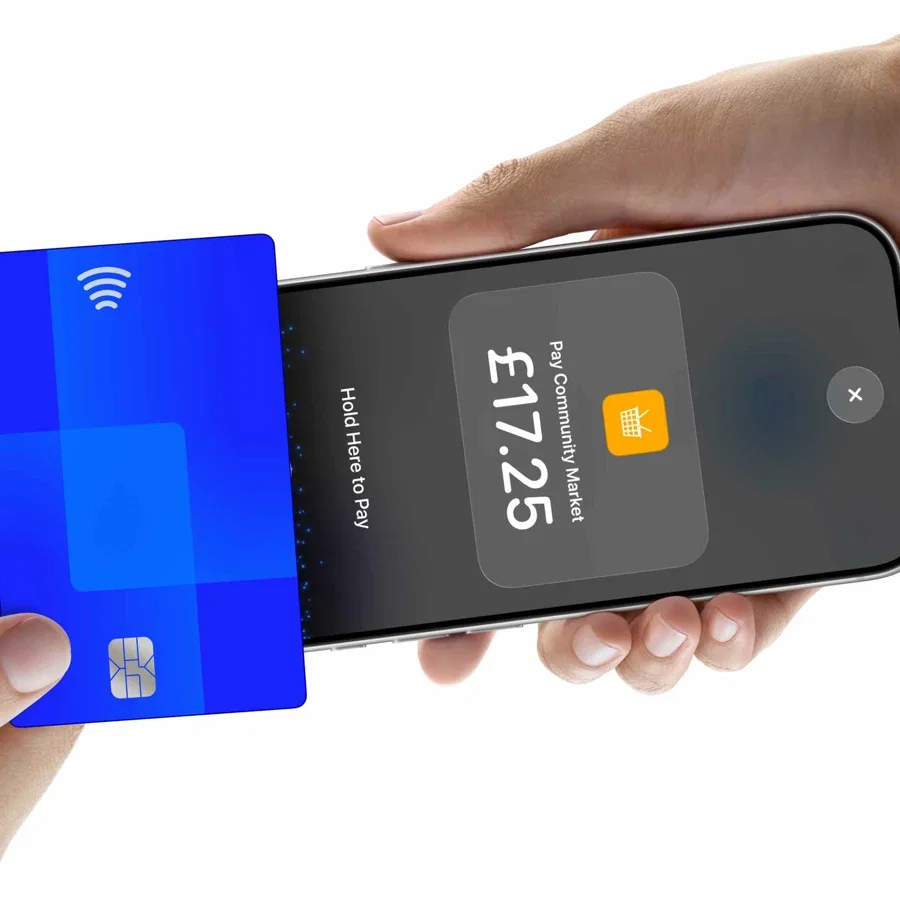
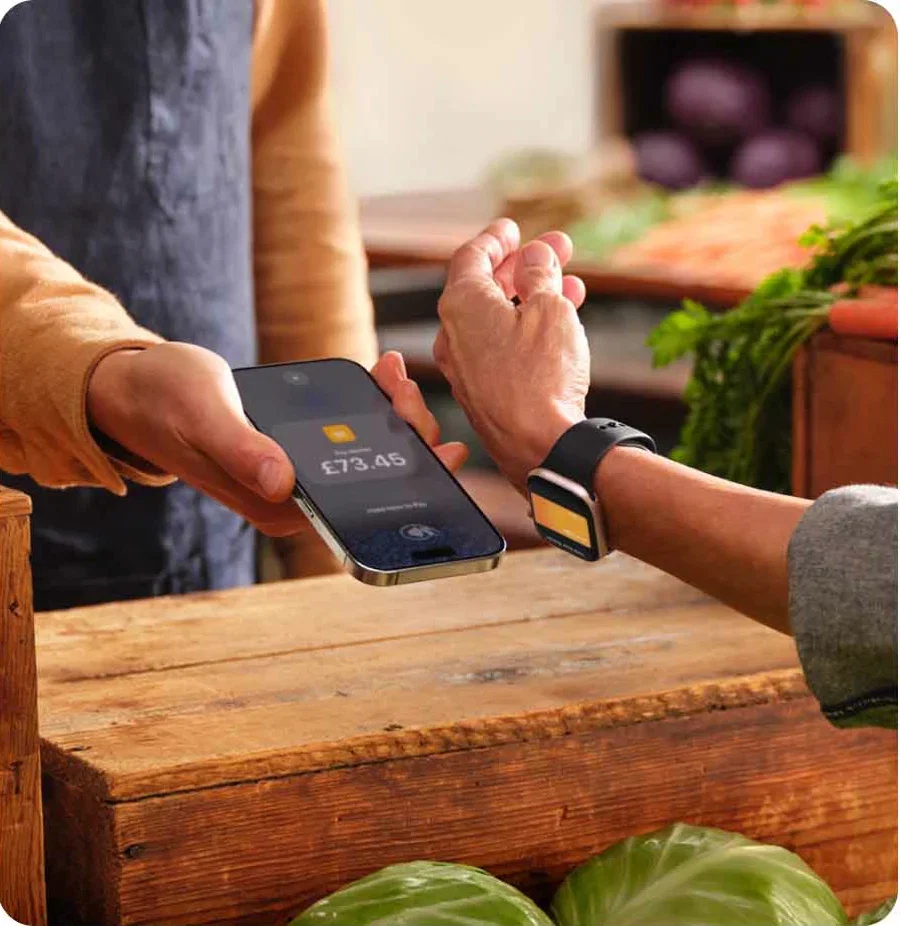
Contactless cards, Apple Pay, Google Pay and the other digital wallets all work the same way. The amount appears on your screen, your customer holds their card, phone or watch to the top of yours, and that is the sale taken.
No hardware
Nothing to buy, nothing to charge
A card reader is one more thing to buy, keep charged and remember on the morning of a show. Tap to Pay removes it: you take the payment on the iPhone in your hand, using the mini POS in the Marzipan app.
Payments run through Stripe, the same as your online checkout, so the sale lands against the same customer and in the same figures as everything else you sell.
Security
Secure by design
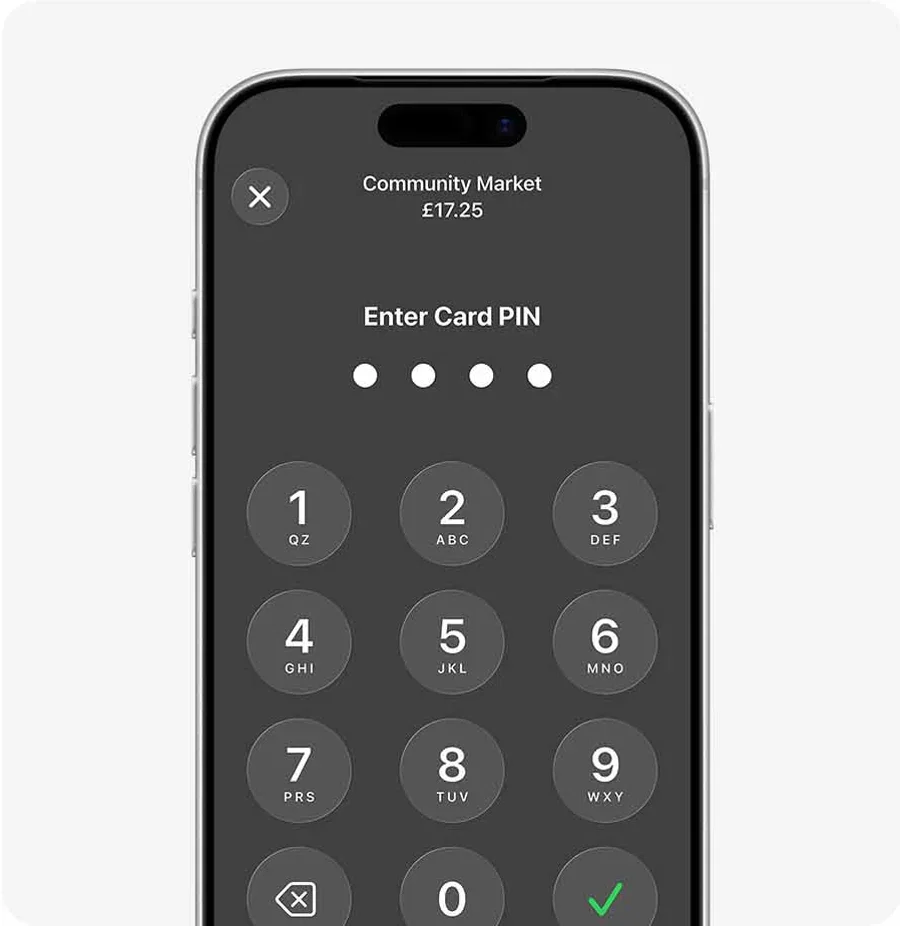
Tap to Pay uses the security and privacy built into iPhone. When a payment is taken, Apple does not store card numbers or PIN information on Apple servers.
Where a card asks for a PIN, iPhone shows its own PIN screen, and photo, video, screenshot and screen recording are blocked while it is open. Your customer types their PIN on your phone knowing it cannot be captured.
Accessibility
Everyone can pay
Customers who need visual or other assistance can enter a PIN without seeing the screen. Audible instructions guide them through each digit, tapping once for one and twice for two, and a swipe right with two fingers submits the PIN.
It is built into iPhone rather than added on, so it works the same way at every stall and every tasting, with nothing for you to set up.

Getting started
Three steps, and none of them involve waiting for a delivery.
Step one
Sign in
Open the app and sign in with the Marzipan account you already use. It is a companion app, so there is no separate account to set up.
Step two
Activate Tap to Pay
Switch Tap to Pay on when you want to take card payments. Everything else in the app works whether you do or not.
Step three
Take payment
Pick the wines, hold the card to the top of your iPhone, and the sale is in Marzipan.
Tap to Pay is part of the mini POS in the Marzipan app for iPhone, alongside orders, customers and subscriptions.
Legal disclaimers
Tap to Pay on iPhone Requirements: Tap to Pay on iPhone requires a supported payment app and the latest version of iOS. Update to the latest version by going to Settings > General > Software Update. Some contactless cards may not be accepted by your payment app. Transaction limits may apply. Tap to Pay on iPhone is not available in all markets. For Tap to Pay on iPhone countries and regions, see developer.apple.com/tap-to-pay/regions.
Contactless Indicator Mark: The Contactless Indicator mark, consisting of four graduating arcs, is a trademark owned by and used with permission of EMVCo, LLC.
Contactless Symbol: The Contactless Symbol is a trademark owned by and used with permission of EMVCo, LLC.
Tap to Pay on iPhone Encryption and Storage: Encrypted card numbers are temporarily stored on iPhone only for transactions made in Store and Forward mode.
Apple, iPhone, Apple Pay and Tap to Pay on iPhone are trademarks of Apple Inc., registered in the U.S. and other countries and regions.
Don't just take our word for it
“We made the switch from WooCommerce to a custom solution powered by Marzipan. Managing our orders is a breeze and the flexibility of the subscriptions API has allowed us to enhance our old vine adoptions offering.”

“Marzipan is incredibly easy to use, and extremely flexible and configurable. It makes recurring subscription wine clubs much easier than any other system I have used, and copes with pretty much everything we have thrown at it.”